
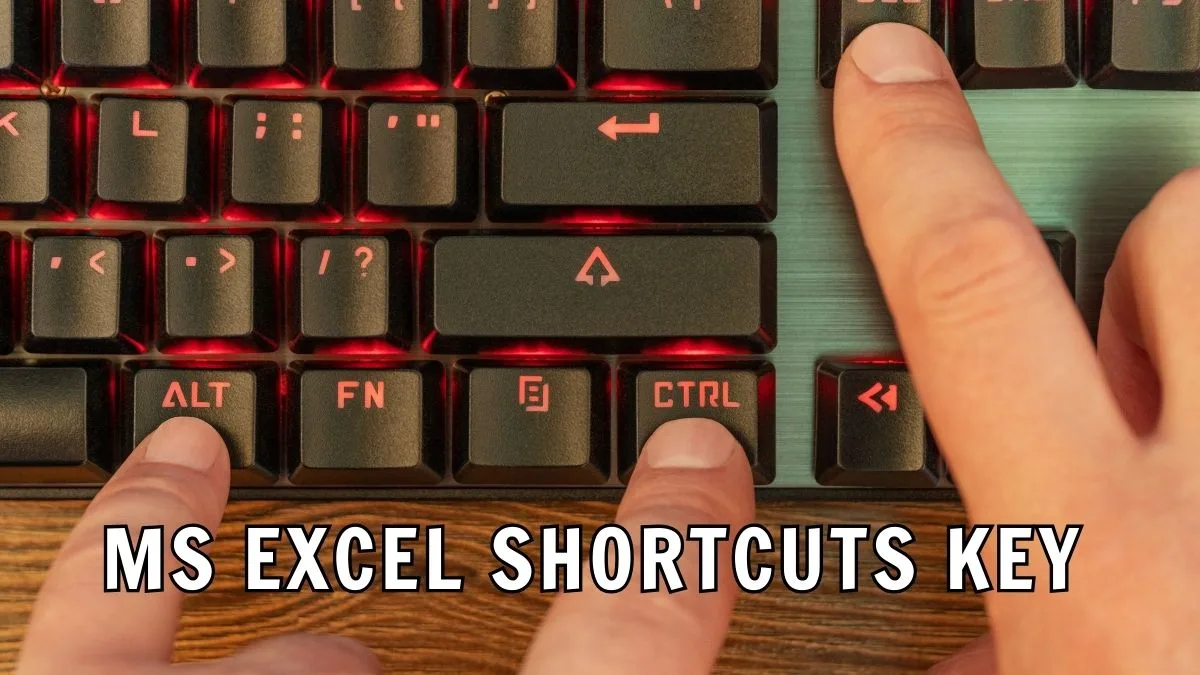
अगर आप रोज़ MS Excel में काम करते हैं और हर छोटे काम के लिए mouse ढूँढते रहते हो तो यकीन मानिए आपका बहुत सारा समय बेकार जा रहा है। यहीं पर ms excel shortcuts key आपकी सबसे बड़ी ताकत बन सकती है। Imagine कीजिए—data copy करना, formula apply करना या rows-columns manage करना बस keyboard से seconds में हो जाएगा।
आज ज़्यादातर students, office staff और beginners यही complain करते हैं कि Excel slow लगता है या काम ज़्यादा time लेता है। Problem Excel में नहीं, problem है shortcuts की knowledge में। सही ms excel shortcuts key सीखकर आप वही काम आधे समय में और बिना गलती के कर सकते हैं।
मान लीजिए आपको पूरा column select करना है—mouse से drag करने में time लगेगा, लेकिन keyboard shortcut से? बस एक click! यही छोटी-छोटी tricks आपकी productivity को next level ले जाएगा।
क्या आप Excel में fast work करना चाहते हैं लेकिन shortcuts याद नहीं रहते?
क्या आप चाहते हैं कि आपका Excel काम easy और professional लगे?
इस article में आप practical और real-life use होने वाली ms excel shortcuts key समझेंगे, बिल्कुल आसान भाषा में।
Table of Contents
यह Topic Users के लिए क्यों मायने रखता है
आज के time में Excel सिर्फ accountants या data analysts तक सीमित नहीं है। सब MS Excel use करते हैं चाय आप Student हो, teacher हो, office executive हो या small business owner भी हो आपको Excel की जरूरत रहेगी लेकिन problem ये है कि ज़्यादातर लोग Excel को slow तरीके से use करते हैं। Mouse पर ज़्यादा depend रहने से काम बहुत slow हो जाता है।
यहीं ms excel shortcuts key matter करती है। ये shortcuts आपको fast, accurate और professional बनाती हैं। अगर आप daily Excel use करते हैं, तो shortcuts सीखना आपकी need है।
मुझे याद है मैं पहले मुझे Excel मे reports बनाने के लिए मुझे पूरे 2 घंटे लागते थे जब मैंने ये Excel shortcuts key सीखा और उसे use करके मैं अब reports sirf 45 minutes मे बना देता हूँ और errors almost zero hai और boss भी खुश।
Ms excel shortcuts key क्या है ?
ms excel shortcuts key ऐसे keyboard combinations होते हैं, जिनसे आप Excel के common काम बिना mouse के कर सकते हैं।
Keyboard की help से Excel commands जल्दी execute करना = Excel Shortcuts
Example:
Ctrl + C→ CopyCtrl + V→ PasteCtrl + Z→ Undo
ये shortcuts Excel ke almost हर version (2016, 2019, 365) में काम करते हैं।
Key Benefits & Limitations
✅ Benefits of MS Excel Shortcuts
🔹 Work speed 2x–3x faster
🔹 Repetitive tasks easy हो जाते हैं
🔹 Productivity boost होती है
🔹 Professional working style develop होता है
🔹 Mouse dependency कम होती है
❌ Limitations
🔹 Starting में shortcuts याद रखना tough लग सकता है
🔹 Beginners confuse हो सकते हैं
🔹 हर shortcut हर version में same नहीं होता
लेकिन practice से ये limitations automatically खत्म हो जाती हैं।
Best Options / Tools / Methods Explained
Most Useful MS Excel Shortcuts Key Categories
🔹 Navigation Shortcuts
Ctrl + Arrow Key→ Data end तक jumpCtrl + Home→ Sheet startCtrl + End→ Last used cell
🔹 Formatting Shortcuts
Ctrl + B→ BoldCtrl + I→ ItalicCtrl + U→ Underline
🔹 Data Handling Shortcuts
Ctrl + Shift + +→ Insert row/columnCtrl + -→ Delete row/columnAlt + =→ AutoSum
🔹 Formula Shortcuts
F2→ Edit cell- `Ctrl + “ → Show formulas
अगर आप shortcuts के साथ-साथ Excel को job-ready level तक ले जाना चाहते हैं, तो formulas समझना भी उतना ही ज़रूरी है। इसी संदर्भ में DigitalGyan का यह detailed guide बहुत helpful है, जहाँ Excel के powerful formulas को आसान भाषा में समझाया गया है —
“MS Excel में काम आने वाले ज़रूरी Formulas की पूरी जानकारी”
https://digitalgyan.co.in/ms-excel-formulas-job-powerful-functions-guide/
Comparison Table / Feature Table
| Task Type | Mouse Method | ms excel shortcuts key |
|---|---|---|
| Copy-Paste | Slow | Very Fast ⚡ |
| Formatting | Multiple clicks | Single shortcut |
| Navigation | Scrolling | Instant jump |
| Productivity | Average | High 🚀 |
How to Choose the Right Option
हर user को सारे shortcuts याद करने की ज़रूरत नहीं होती। Smart तरीका ये है:
🔢 Step-by-Step Approach
1️⃣ Daily use होने वाले shortcuts से start करें
2️⃣ पहले navigation shortcuts सीखें
3️⃣ फिर formatting और formula shortcuts
4️⃣ Practice के साथ धीरे-धीरे advanced shortcuts add करें
Beginners के लिए सबसे सही तरीका यही है कि वो Excel को real tasks के साथ सीखें। उदाहरण के लिए, attendance sheet बनाते समय shortcuts का use करना काफी easy और effective रहता है।
इसी purpose के लिए यह step-by-step Hindi guide beginners के लिए काफी मददगार है —
“Excel में Attendance Sheet बनाना आसान तरीके से”
https://digitalgyan.co.in/excel-me-attendance-sheet-kaise-banaye/
Common Mistakes Users Make
Beginners अक्सर ये mistakes करते हैं:
🔹 सारे shortcuts एक साथ याद करने की कोशिश
🔹 Practice नहीं करते
🔹 Mouse + keyboard mix नहीं करते
🔹 Excel version differences ignore करते हैं
👉 याद रखें: consistency > speed
Expert Tips & Best Practices
💡 Pro Tips:
🔹 रोज़ कम से कम 5 shortcuts use करें
🔹 Mouse तभी use करें जब shortcut ना हो
🔹 Shortcut को real task के साथ जोड़ें
🔹 Excel practice files पर experiment करें
Shortcut याद नहीं करना, habit बनानी है
Safety, Legal & Trust Considerations
✔ MS Excel shortcuts पूरी तरह safe हैं
✔ कोई legal issue नहीं
✔ Microsoft officially supports shortcuts
✔ Data security पर कोई risk नहीं
बस ध्यान रखें:
- Cracked Excel versions avoid करें
- Unknown macros enable ना करें
Microsoft खुद Excel shortcuts और features को officially support करता है। Excel से जुड़ी authentic और updated जानकारी के लिए Microsoft का official Excel Support page सबसे भरोसेमंद source माना जाता है, जहाँ beginners से लेकर professionals तक के लिए clear guidance मिलती है।
अगर आप सच में Excel में fast और smart काम करना चाहते हैं, तो ms excel shortcuts key सीखना आपका best decision होगा।
अगर आप रोज़ Excel में काम करते हैं, तो अब ये साफ हो चुका होगा कि सिर्फ formulas जानना ही काफी नहीं है। सही ms excel shortcuts key आपके काम करने के तरीके को पूरी तरह बदल सकती है। इस article में आपने समझा कि Excel shortcuts क्यों ज़रूरी हैं, ये कैसे time बचाती हैं, productivity बढ़ाती हैं और आपको एक confident, professional user बनाती हैं।
चाहे आप student हों, office employee हों या beginner, अगर आप keyboard shortcuts को धीरे-धीरे अपनी habit बना लेते हैं, तो Excel में काम करना boring नहीं बल्कि smart और enjoyable बन जाएगा 😃। सबसे अच्छी बात ये है कि ये shortcuts safe हैं, Microsoft द्वारा officially supported हैं और हर Excel user के लिए useful हैं।
अब अगला step आपके हाथ में है। आज ही 5 basic ms excel shortcuts key चुनिए और उन्हें अपने daily work में use करना शुरू कीजिए। यकीन मानिए, फर्क खुद महसूस होगा।
👉 क्या आप पहले से Excel shortcuts use करते हैं या आज से शुरू करेंगे?
👉 कौन-सी shortcut आपको सबसे ज़्यादा useful लगी?
अपने experience को apply कीजिए और Excel को slow नहीं, smart बनाइए 🚀
FAQs
❓ ms excel shortcuts key क्या होती हैं और ये क्यों ज़रूरी हैं?
ms excel shortcuts key keyboard combinations होती हैं, जिनसे आप Excel के common काम बिना mouse के जल्दी कर सकते हैं। ये shortcuts time बचाने, errors कम करने और productivity बढ़ाने में मदद करती हैं। अगर आप daily Excel use करते हैं, तो shortcuts सीखने से आपका काम fast, smooth और professional बन जाता है।
❓ क्या Excel shortcuts beginners के लिए difficult होती हैं?
नहीं, बिल्कुल नहीं। शुरुआत में थोड़ी confusion हो सकती है, लेकिन अगर आप रोज़ 4–5 basic shortcuts practice करते हैं, तो धीरे-धीरे सब आसान लगने लगता है। Beginners को पहले copy, paste, undo और navigation shortcuts से start करना चाहिए।
❓ क्या सभी Excel versions में shortcuts same होती हैं?
ज़्यादातर common shortcuts Excel के सभी versions (2016, 2019, 365) में same काम करती हैं। हालांकि कुछ advanced या new features के shortcuts version के हिसाब से अलग हो सकते हैं। इसलिए हमेशा basic और frequently used shortcuts पर focus करें।
❓ क्या Excel shortcuts use करना safe और legal है?
हाँ, Excel shortcuts पूरी तरह safe और legal हैं। ये Microsoft द्वारा officially supported होती हैं और data security पर कोई risk नहीं होता। बस हमेशा genuine Excel version use करें और unknown macros enable करने से बचें।
❓ रोज़मर्रा के काम के लिए कौन-सी Excel shortcuts सबसे useful हैं?
Daily work के लिए Ctrl + C, Ctrl + V, Ctrl + Z, Ctrl + S, Ctrl + Arrow Keys और Alt + = जैसी shortcuts सबसे ज़्यादा useful होती हैं। ये shortcuts data handling, saving और calculations को बहुत easy बना देती हैं।
अगर आपको यह article useful लगा हो, तो इसे अपने दोस्तों और colleagues के साथ जरूर share करें 😊
Excel से जुड़े ऐसे ही smart tips पाने के लिए comment करें और हमारे updates से जुड़े रहें 🚀

नमस्ते! मैं DigitalGyan पर आसान और भरोसेमंद हिंदी में मोबाइल, ऐप्स, गैजेट्स और कंप्यूटर से जुड़े गाइड्स लिखता हूँ। मेरा मकसद टेक्नोलॉजी को मुश्किल भाषा से निकालकर साधारण लोगों तक आसान तरीके से पहुँचाना है, ताकि कोई भी बिना कन्फ्यूजन के अपनी टेक समस्याओं का हल खुद कर सके। यहाँ शेयर की जाने वाली जानकारी रिसर्च, अनुभव और यूज़र की ज़रूरतों को ध्यान में रखकर तैयार की जाती है। अगर आपको टेक से जुड़ा कुछ भी समझना है, तो आप सही जगह पर हैं 😊