
MS Excel Formulas आज के time में सिर्फ accountant या data analyst तक सीमित नहीं हैं — अगर आप office job, private नौकरी, या interview की तैयारी कर रहे हो तो Excel आपकी real power बन सकता है, सच बताऊँ? ज़्यादातर लोग Excel खोलते ही डर जाते हैं और समझ नही आता है, लेकिन problem Excel नहीं है, problem है सही formulas की जानकारी ना होना।
Daily work में data entry, reports, salary sheet, attendance या analysis — हर जगह MS Excel Formulas आपका काम आसान बना सकते हैं। जैसे VLOOKUP, IF, SUMIF Excel functions वही tools हैं जो आपके office की manager notice करते हैं और impress हो जाता है।
मैं 10 साल से Excel use कर रहा हूँ और मैं इस article में अपने experience से बताऊँगा वो 15 powerful Excel functions जो सच में job में काम आते हैं — कोई बेकार theory नहीं है सिर्फ practical चीज़ें। हर formula को simple example के साथ समझाया जाएगा ताकि आप उसे आपने काम में तुरंत use कर सको।
अगर आप सोच रहे हो:
👉 “Excel kaunse formulas सीखूँ?”
👉 “Interview में कौन से Excel questions आते हैं?”
तो ये guide आपके लिए ही है 🚀 चलिए step-by-step Excel ko easy banate हैं।
Table of Contents
MS Excel Formulas क्यों Job के लिए इतने ज़रूरी हैं?
आज लगभग हर job में Excel एक basic requirement बन चुका है। चाहे आप fresher हों या experience हो अगर आपको सही MS Excel Formulas आते हैं तो आपका काम automatically fast हो जाता है 🚀
मेरे personal experience से बताऊँ तो जब मैंने Excel के ये formulas सीख लिया तब managers ने notice करना शुरू किया। वजह simple थी —
reports जल्दी बन रही थीं, mistakes कम हो गई थीं और data समझाना आसान हो गया था।
👉 यही reason है कि आज recruiters भी Excel skills को shortlist करने का एक strong factor मानते हैं।
(यह बात Microsoft खुद भी recommend करता है – आप Excel की official documentation यहाँ देख सकते हैं:
Microsoft Excel Formulas Guide – Microsoft Learn)
MS Excel Skills = Career Safety
अगर आप ये सोचते हो —
❝Excel तो basic है, बाद में सीख लेंगे❞
तो honestly, आप थोड़ा risk ले रहे हो
क्योंकि MS Excel Formulas आपको ये direct फायदे देते हैं:
⏱️ Time saving
📊 Accurate data analysis
💼 Better job performance
🎯 Interview confidence
और यही skills long-term में आपकी job security बनती हैं।
Office Job में सबसे ज़्यादा इस्तेमाल होने वाले MS Excel Formulas
नीचे दिए गए formulas कोई theory नहीं हैं — ये वही चीज़ें हैं जो daily office work में practically use होती हैं 👍
1️⃣ SUM – Total निकालने का सबसे आसान तरीका
SUM formula numbers को जोड़ने के लिए use होता है।
Use case: Salary sheet, sales report, marks total
Example
=SUM(B2:B10)
👉 B2 से B10 तक के सारे numbers का total एक click में 📊
2️⃣ AVERAGE – Average निकालने के लिए
जब आपको average salary, marks या performance निकालनी हो।
Example
=AVERAGE(C2:C10)
👉 Excel खुद average calculate कर देता है, calculator की जरूरत नहीं
3️⃣ COUNT – Numbers की गिनती
ये formula सिर्फ numeric values count करता है।
Example
=COUNT(A2:A20)
👉 कितने cells में numbers हैं, तुरंत पता चल जाएगा
4️⃣ IF – Decision लेने वाला Formula
IF formula condition check करता है — Yes / No logic।
Syntax:
=IF(condition, value_if_true, value_if_false)
Example
=IF(B2>=40,"Pass","Fail")
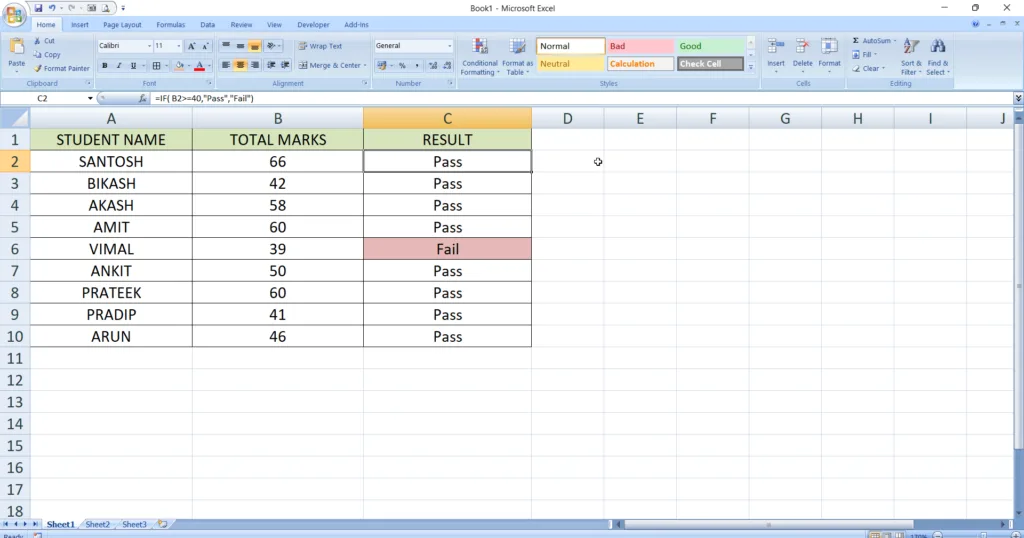
👉 Marks के basis पर Pass / Fail automatic 🎯
5️⃣ VLOOKUP – Data Search करने का King 👑
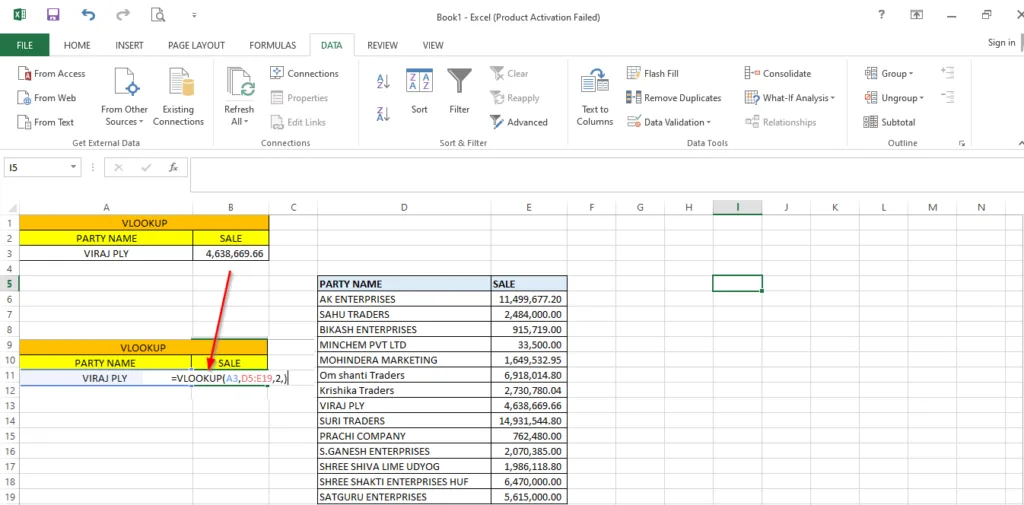
Large data से specific value ढूँढने के लिए best।
Use case: Party Name से Sales Amount निकाल ना हो
Example
=VLOOKUP(VIRAJ PLY,D5:E19,2,)
👉 VIRAJ PLY का Amount तुरंत मिल जाएगा
अगर आप MS Excel Formulas और Functions को official level पर detail में सीखना चाहते हैं, तो Microsoft की documentation भी जरूर देखें। यहाँ हर formula ka proper explanation, syntax और examples दिए गए हैं — beginners और professionals दोनों के लिए useful।
6️⃣ HLOOKUP – Row-wise Search
VLOOKUP जैसा ही, लेकिन data horizontal हो तो।
Example
=HLOOKUP("Jan",A1:F5,2,FALSE)
7️⃣ CONCATENATE – Text को जोड़ना
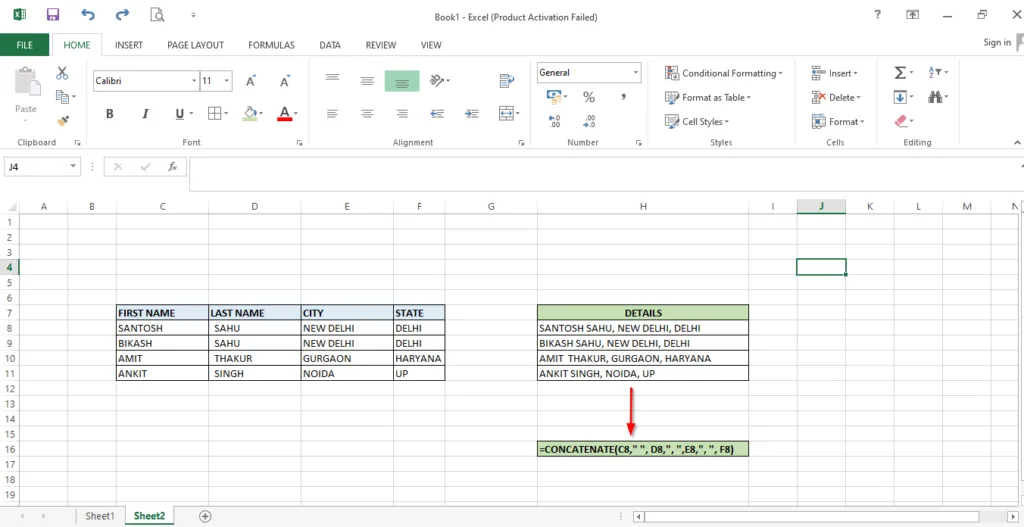
First name + Last name, City + State जोड़ने में काम आता है।
Example
=CONCATENATE(C8," ", D8,", ",E8,", ", F8)
👉 SANTOSH + SAHU , NEW DELHI , DELHI = SANTOSH SAHU, NEW DELHI, DELHI
8️⃣ LEN – Text Length निकालना
Password length या character limit check करने के लिए useful।
Example
=LEN(A2)
9️⃣ TRIM – Extra Space हटाने के लिए
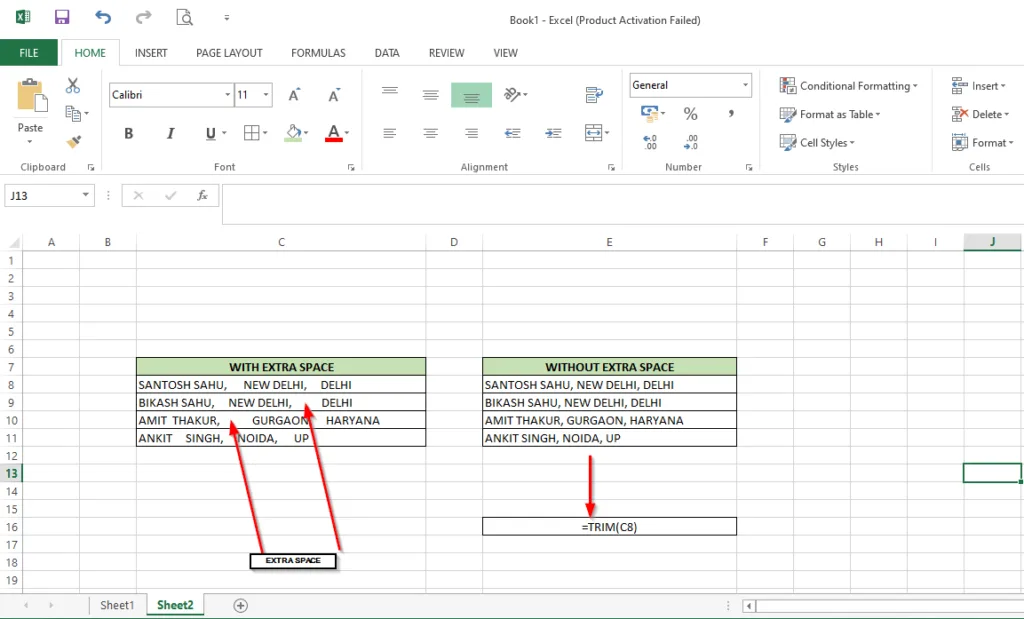
Copy-paste data में extra spaces बहुत common होते हैं।
Example
=TRIM(A2)
🔟 LEFT / RIGHT – Text का हिस्सा निकालना
Codes, IDs, mobile number extract करने में काम आता है।
Example
=LEFT(A2,4)
=RIGHT(A2,2)
1️⃣1️⃣ ROUND – Decimal Control
Example
=ROUND(A2,2)
1️⃣2️⃣ COUNTIF – Condition के साथ Count
Example
=COUNTIF(B2:B20,">60")
1️⃣3️⃣ SUMIF – Condition के साथ Sum
Example
=SUMIF(A2:A20,"Delhi",B2:B20)
1️⃣4️⃣ TODAY / NOW – Current Date & Time
Example
=TODAY()
=NOW()
1️⃣5️⃣ INDEX + MATCH – Advanced Lookup 🔥
Professionals का favourite combo।
Example
=INDEX(C2:C20,MATCH(101,A2:A20,0))
अगर आप इन formulas को आपने काम में apply करना चाहते हैं, तो हमारा Excel में Attendance Sheet कैसे बनाएं वाला step-by-step guide भी आपके लिए बहुत useful रहेगा। एक बार जरूर Excel में Attendance Sheet कैसे बनाएं पर क्लिक करके जरूर पढ़े।
Beginners से Pro बनने का Excel Formula Roadmap
अगर आप confuse हो कि कहाँ से शुरू करें, तो ये order follow करें 👇
Learning Order:
SUM → AVERAGE → IF → COUNTIF → VLOOKUP / HLOOKUP → TEXT → Pivot Table
Conclusion: Excel सीखो, Career Grow करो 🚀
अगर आपने यहाँ तक पढ़ लिया है, तो एक बात clear है — MS Excel Formulas आज सिर्फ एक software feature नहीं, बल्कि job survival + growth tool बन चुका है। चाहे आप fresher हों, working professional हों या interview की तैयारी कर रहे हो सही Excel formulas आपकी daily productivity को कई गुना बढ़ा सकते हैं 💼
इस article में हमने वही 15 powerful functions देखे जो real office work में use होते हैं — reports बनाना हो, data analyze करना हो या managers को clear insights दिखाने हों। Experience से कह रहा हूँ, जब आप Excel में confident होते हो तो काम का stress अपने आप कम हो जाता है
अब अगला step आपके हाथ में है। रोज़ 15–20 मिनट practice करो, छोटे data sets पर formulas try करो और धीरे-धीरे advanced functions सीखो। याद रखो, MS Excel Formulas एक दिन में master नहीं होते, लेकिन consistency से ये आपकी सबसे strong skill बन सकते हैं ✨
अब आपकी बारी 👇
👉 कौन-सा Excel formula आपको सबसे ज़्यादा useful लगा?
👉 क्या आप चाहते हैं कि अगला article Interview-based Excel Questions या Advanced Excel Tips पर हो?
Comment करके जरूर बताना, और अगर article helpful लगा हो तो इसे अपने दोस्तों के साथ share करना मत भूलना 👍
FAQs – MS Excel Formulas से जुड़े आम सवाल
❓ What are the 7 basic Excel formulas?
अगर आप Excel beginner हैं, तो ये 7 basic Excel formulas सबसे पहले सीखने चाहिए: SUM, AVERAGE, COUNT, IF, MIN, MAX और VLOOKUP।
ये formulas daily office work में सबसे ज़्यादा use होते हैं — जैसे total निकालना, average calculate करना, data count करना या simple decision (Pass/Fail) लेना। सच कहूँ तो, सिर्फ इन formulas से ही आप 60–70% Excel work आराम से handle कर सकते हो। यही reason है कि MS Excel Formulas सीखने की शुरुआत हमेशा basics से करनी चाहिए 👍
❓ What are the 25 commonly used formulas in MS Excel?
MS Excel में सैकड़ों formulas हैं, लेकिन practically कुछ ही रोज़ काम आते हैं।
Top commonly used formulas में शामिल हैं: SUM, AVERAGE, IF, COUNT, COUNTIF, SUMIF, VLOOKUP, HLOOKUP, INDEX, MATCH, CONCAT, LEN, TRIM, LEFT, RIGHT, ROUND, TODAY, NOW, MIN, MAX, TEXT, IFERROR, XLOOKUP, PIVOT formulas।
अगर आप job-oriented Excel सीख रहे हैं, तो इन्हीं formulas पर focus करना सबसे smart approach है 💡
❓ What is the top 10 rule in Excel?
Excel में “Top 10 Rule” आमतौर पर Conditional Formatting से जुड़ा होता है।
इस rule की मदद से आप किसी data range में top 10 values (जैसे top 10 sales, top 10 marks) को automatically highlight कर सकते हैं।
Reports और dashboards में ये feature managers को data जल्दी समझाने में बहुत help करता है। अगर आप Excel को visually strong बनाना चाहते हो, तो यह rule जरूर सीखो 📊
❓ What is the golden rule of Excel?
Excel का golden rule बहुत simple है —
👉 “Data ko kabhi manually repeat mat karo, formula use karo.”
जब भी कोई calculation, logic या pattern repeat हो रहा हो, वहाँ MS Excel Formulas का इस्तेमाल करना ही best practice मानी जाती है।
Manual calculation ना सिर्फ time waste करती है, बल्कि errors के chances भी बढ़ा देती है।
Professionals हमेशा formulas, cell references और automation पर भरोसा करते हैं, क्योंकि इससे data accurate रहता है और future updates आसान हो जाते हैं। अगर आप Excel में confident बनना चाहते हो, तो यही golden rule सबसे पहले follow करना शुरू करो 💡
❓ What is the first rule of Excel?
Excel का first rule है —
👉 “Data ko hamesha structured aur clean rakho.”
कोई भी formula तभी सही काम करेगा जब आपका data properly organized हो।
Columns clear हो, headings सही हो, extra spaces ना हों और numbers text format में ना हो — ये छोटी बातें Excel learning का foundation बनाती हैं।
असल में, MS Excel Formulas data ke upar hi work करते हैं, इसलिए साफ-सुथरा data = accurate result।
अगर शुरुआत से ही ये habit बना ली, तो advanced Excel भी आपको मुश्किल नहीं लगेगा 😊
अगर यह guide आपको सच में helpful लगी हो और MS Excel Formulas अब थोड़े easy लगने लगे हों 😊, तो इसे वहीं तक मत रोकिए।
👉 इस article को अपने friends, colleagues या students के साथ जरूर share करें — हो सकता है आपकी एक share किसी की job performance या career growth में मदद कर दे 💼✨
और हाँ, comment में बताइए:
- कौन-सा Excel formula आपको सबसे ज़्यादा useful लगा?
- क्या आप next article Advanced Excel Tips, Interview Excel Questions या Excel Shortcuts पर पढ़ना चाहेंगे?
आपका feedback ही बताता है कि अगला content किस direction में जाए 👍
Excel सीखते रहिए, practice करते रहिए — और career में आगे बढ़ते रहिए 🚀

नमस्ते! मैं DigitalGyan पर आसान और भरोसेमंद हिंदी में मोबाइल, ऐप्स, गैजेट्स और कंप्यूटर से जुड़े गाइड्स लिखता हूँ। मेरा मकसद टेक्नोलॉजी को मुश्किल भाषा से निकालकर साधारण लोगों तक आसान तरीके से पहुँचाना है, ताकि कोई भी बिना कन्फ्यूजन के अपनी टेक समस्याओं का हल खुद कर सके। यहाँ शेयर की जाने वाली जानकारी रिसर्च, अनुभव और यूज़र की ज़रूरतों को ध्यान में रखकर तैयार की जाती है। अगर आपको टेक से जुड़ा कुछ भी समझना है, तो आप सही जगह पर हैं 😊
3 thoughts on “MS Excel Formulas: 15 Powerful Functions जो Job में काम आएं”